To track who has paid dues, you can look at Dues Collection, which will display all dues payments. On this page, you will see a list of all those who paid dues, based on the what has been defined in Membership Dues Requirement. For their record to appear, an Amount Due has to be filled in Membership Dues Requirements.
Required Access:
You will need Dues Administrator or Administrator access level.
Where to Go:
- From the Member Portal, go to Admin > Member Management
- Find Dues Management
- Then, click on Dues Collection
Steps to be Taken:
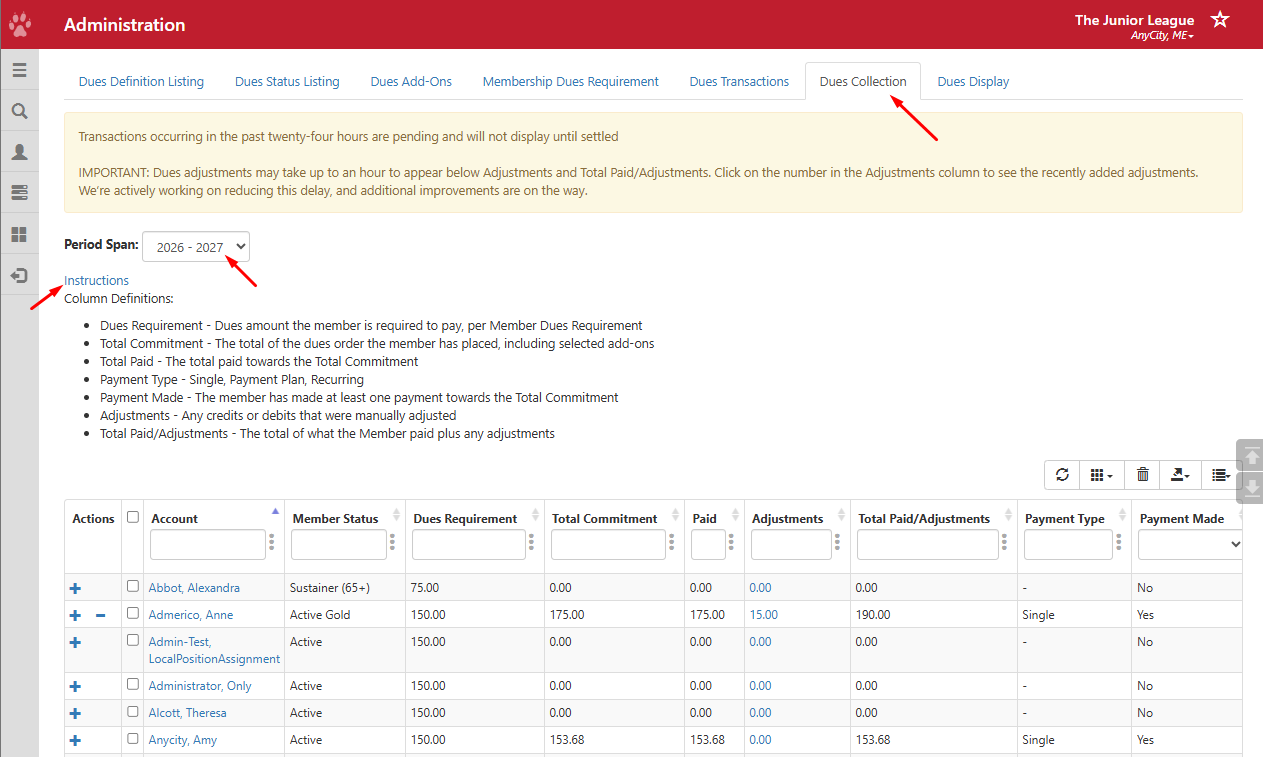
The Period Span for the League Year in which you are collecting dues will display by default i.e. 2026-2027
If you need to look at a different League Year, select the year next to the Period Span dropdown.
Each column will display the following information:
Account - Name of the member who owes dues. You can click on their name to view their record from the Admin Profile.
Member Status - Status of the Member at the start of the Period Span or the League year specified
Dues Requirement - The dues amount the Member is required to pay, as defined from Membership Dues Requirement.
Total Commitment - The total of the dues order the member has placed, including any optional selected add-ons
Paid - The total paid towards the Total Commitment.
Adjustments - Any credits or debits that were manually adjusted
Total Paid/Adjustments - The total of what the Member paid plus any adjustments
Payment Type - the dues option a Member selected when they paid their dues. i.e. Single, Payment Plan, Recurring
Payment Made - The member has made at least one payment towards the Total Commitment in Member Essentials dues.
If you filter by Payment Made and set it to No, you can use the Email Tool to remind members who have not paid dues.
Take note that the Payment Made column reflects payments made through Dues Management. If you made any dues adjustments or the member made a payment in the Simple Store, they will not be reflected as "paid" in this column because the payments were made outside of the dues system.
Also, transactions can take up to 24 hours to be reflected in dues.
Actions - Adjustments should be used to track dues payments or credits that have occurred outside of the dues payment system, e.g., a partial scholarship or a dues discount. They do not charge a Member's credit card. See Dues Adjustments
Track Dues Not Paid and Email:
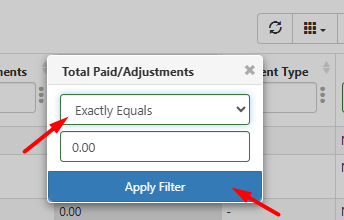
- If dues adjustments were made, next to Total Paid/Adjustments, click on the 3 dots to filter.
- Choose Exactly Equals and enter 0.00
You can also set Payment Made to No to show a list of everyone who hasn't paid.
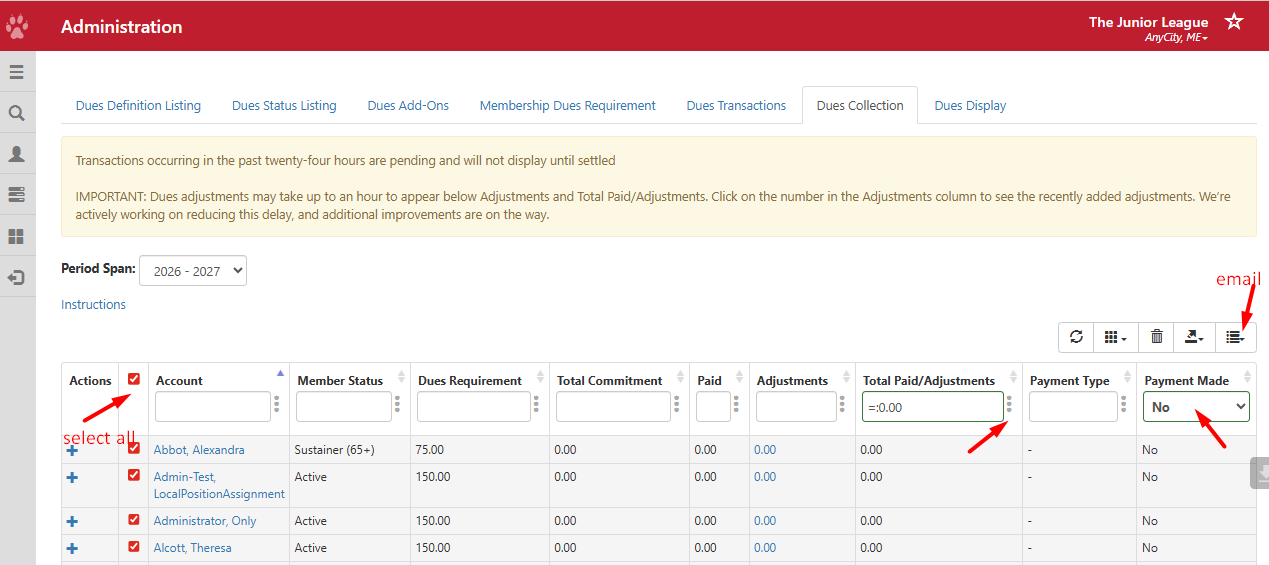
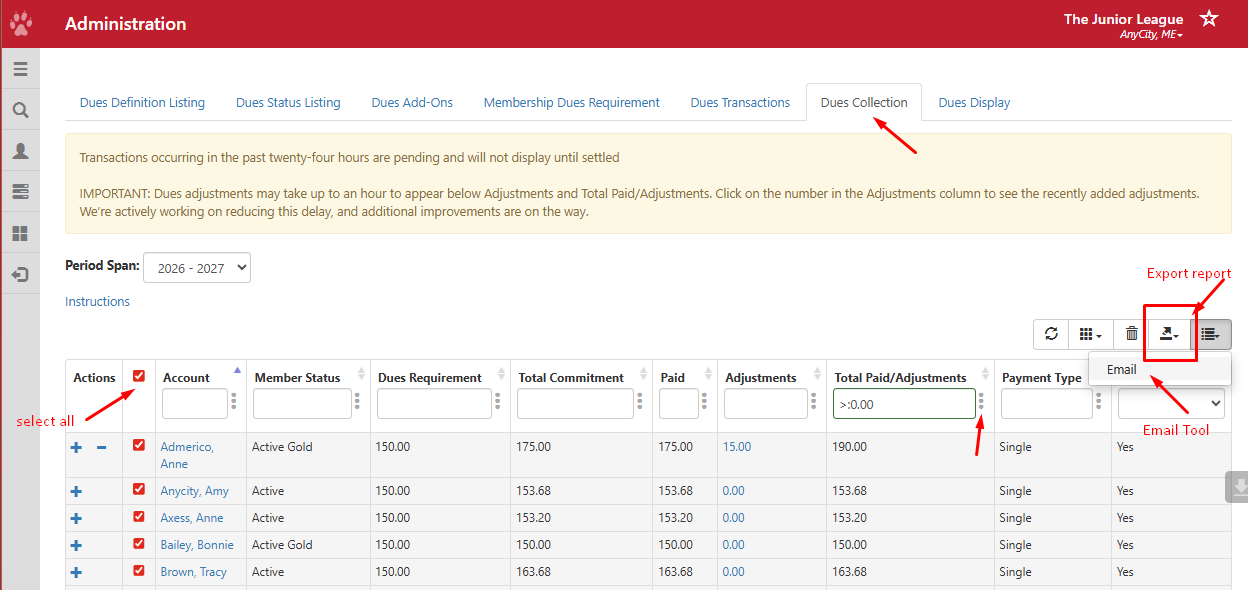
To the left of each Account or member name, there are checkboxes. Select all the names.
On the top right, click on the list icon to email Members. This will redirect you to the Email Tool, where you can send a message to your members. This can be used to email members that have not yet paid their dues.
Track Paid Dues:
- Next to Total Paid/Adjustments, click on the 3 dots to filter.
- Choose Greater Than and enter 0.00
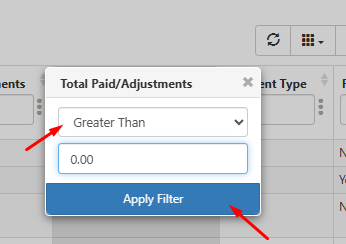
- This will display everyone who has paid dues, including those made outside of the system. (It will include payments where Payment Made is set to No)
- If a Member signed up for a Payment Plan and made a payment for the first installment, they will also appear on this list.
- You can export report by clicking on the diagonal arrow.
Additional Tools:
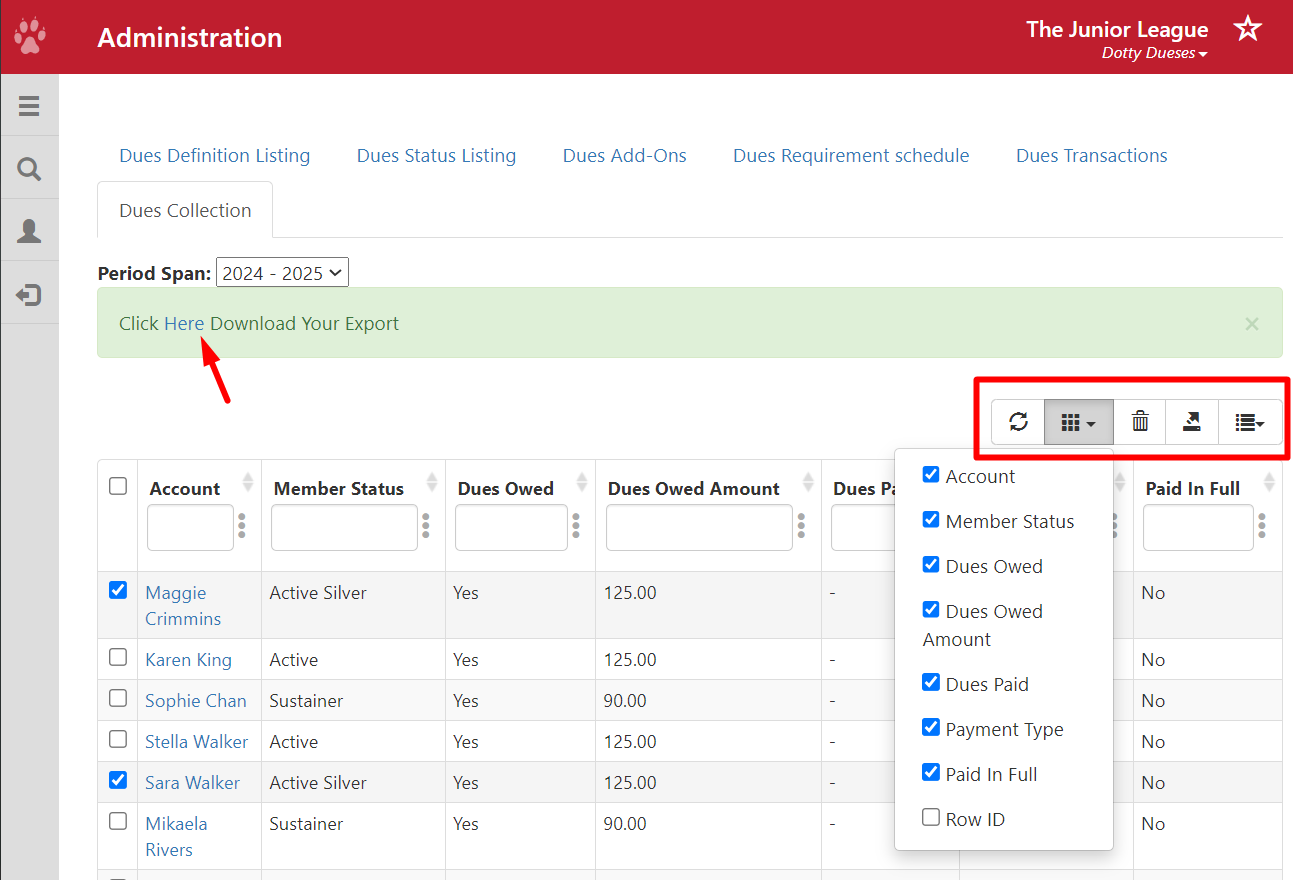
There is a menu on the top right with actions on how to display and extract dues collection, described below from left to right:
Refresh - refreshes the list of dues collection from this page.
Column Selection - choose which columns to display on the screen
Clear Filters - the trash bin icon clears the filters from this page
Export to Excel - the diagonal arrow will export this list to Excel. You will see a Click Here to Download Your Export message highlighted in green. Click on the "Here" link to download.