
Accessing the Transfer Manager
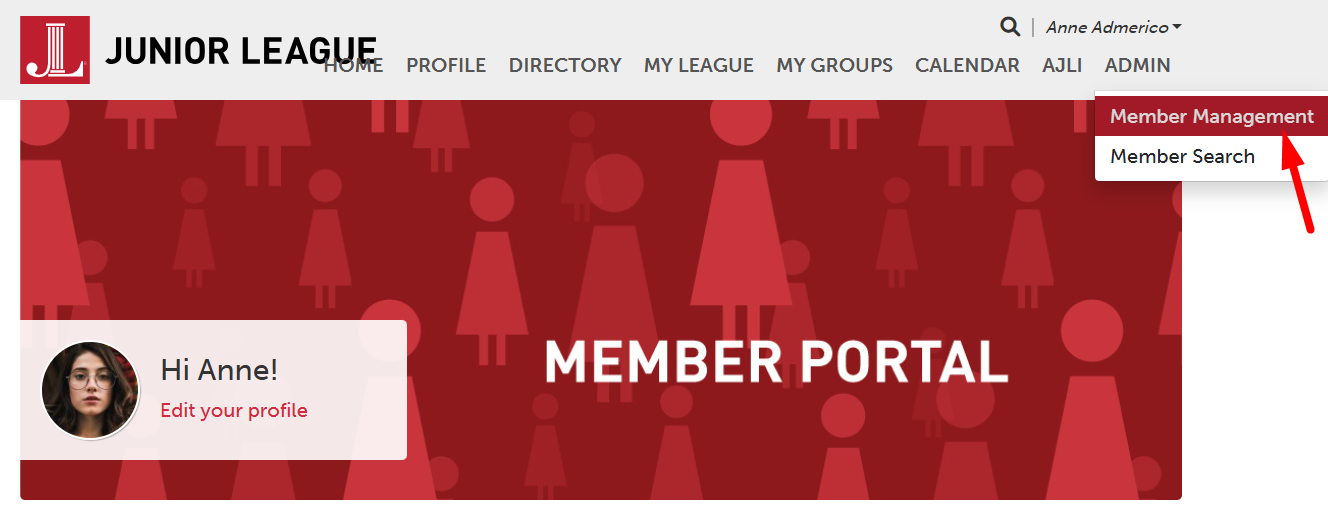
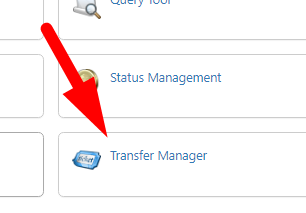
To access the Transfer tool, go to ADMIN > Member Management and find Transfer Manager. You must have the AJLI Transfer Admin permission to access the tool.
 |  |
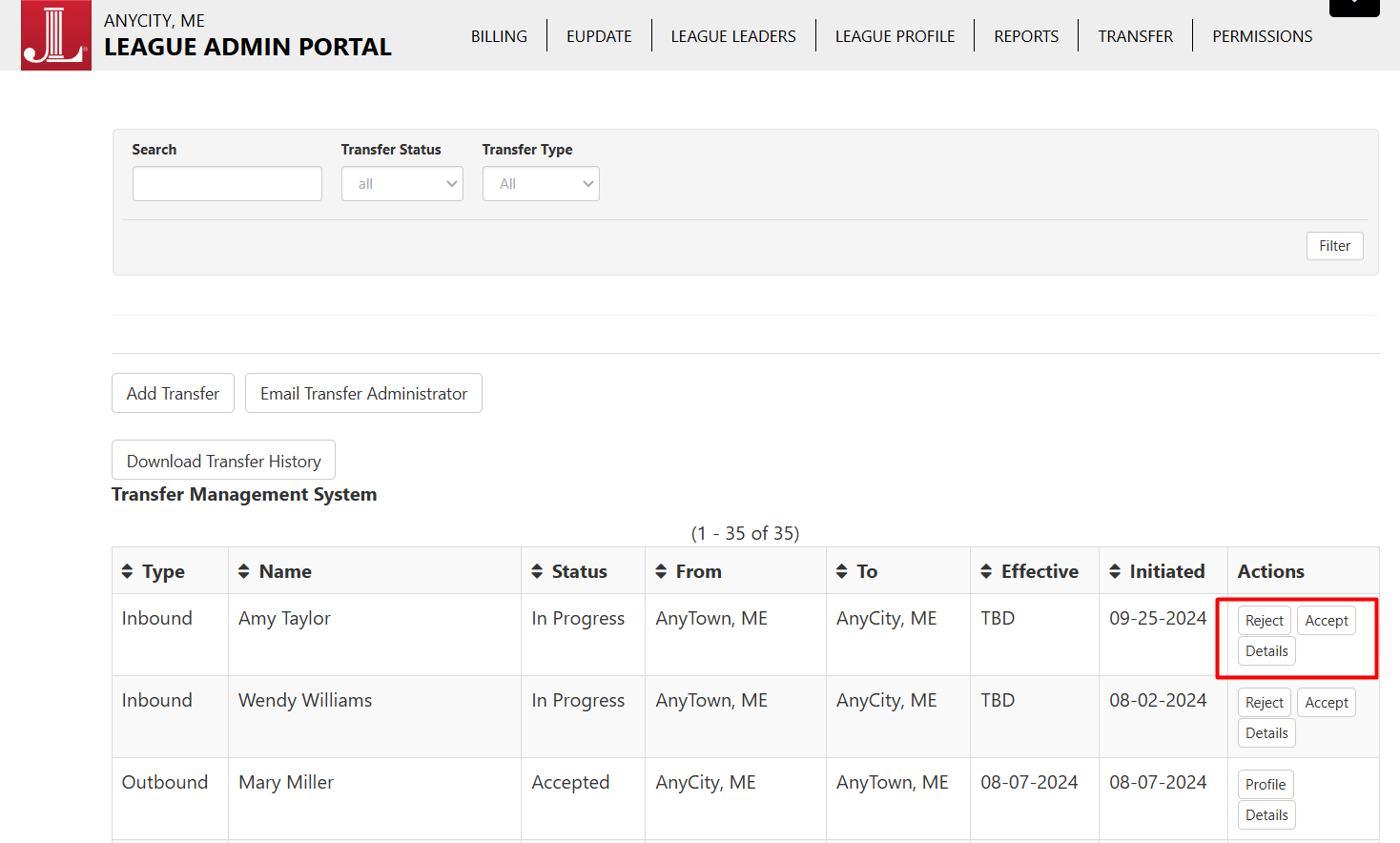
You will see a list of all your transfers. Click Details to view information about the transfer.
Accepting a Transfer
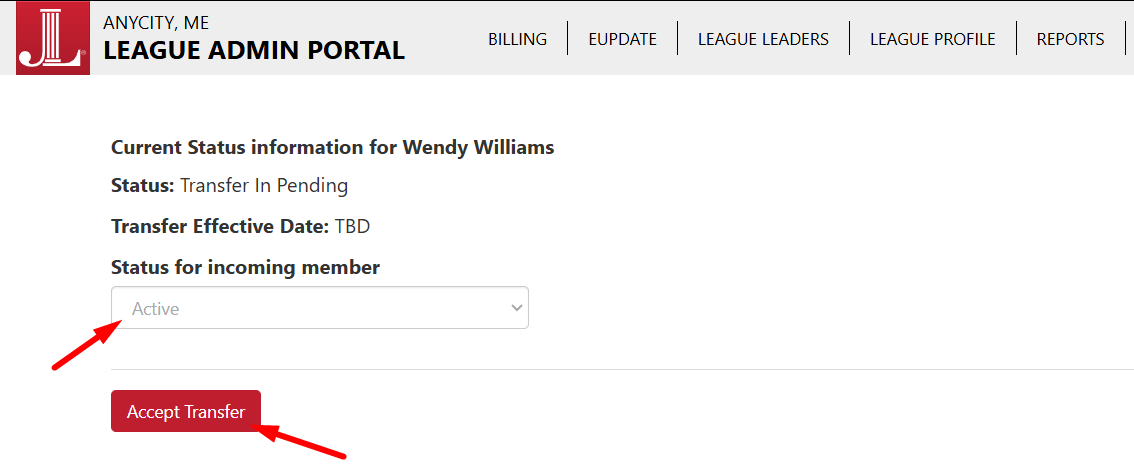
After you accept a transfer, you will prompted to assign a status to the Member's profile. Select the correct status and click Accept Transfer. You can also reject a transfer if needed.
The Member's profile will transfer to your League immediately, including all current contact information, status history, placement history, etc.
Finding the Transferred Member
If you can't find the record, you can use the Include Inactive Members filter. If a Transfer is inactive, you can add the proper Status to her record.
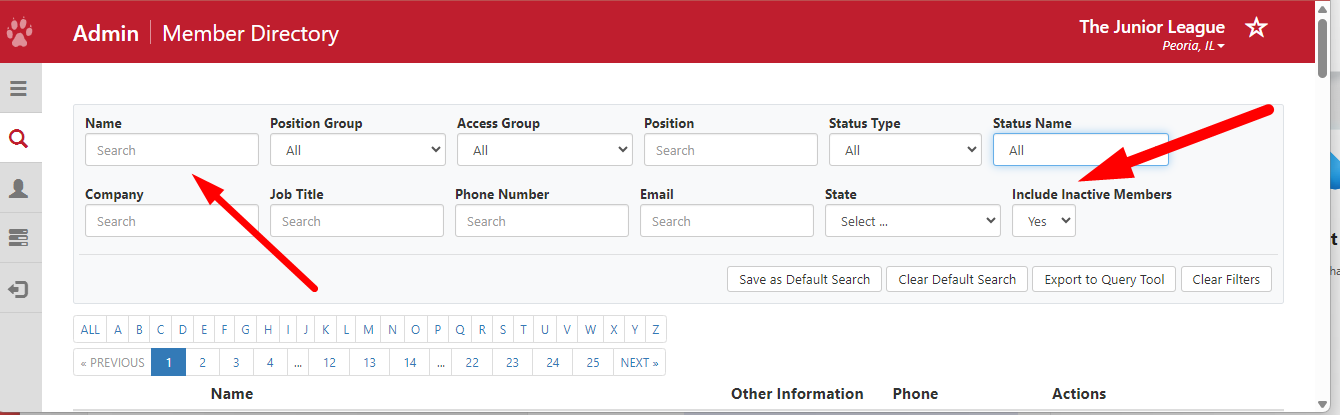
Inviting Member to Portal
When a Member transfers over, if she was previously from a League that also uses Member Essentials, she can use the same username and password to log in.
If her previous League was from Digital Cheetah, an invitation link will need to be "reset", so she can be invited to your League's Member Portal. This requires the Security Administrator permission.
- Select Admin > Member Search
- Find and open the member's record
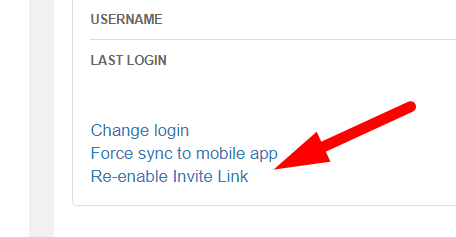
- Under the Login section of the member record, select "Re-enable Invite Link"
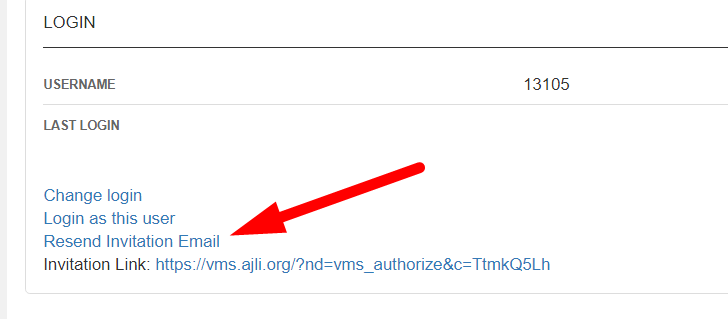
- Then, select "Resend Invitation Email" or copy and paste the the invitation link to the member. For more detailed steps, see Re-enable Invite Link.
- If you are using Intake Management to process incoming transfers, assign the member profile to the appropriate intake entry point. See the article Adding Transfers to Intake. Contact support if you would like to set up Intake Management to process transfers.
An updated Transfer Management Guide is available on the MyAJLI website at https://www.myajli.org/leagues/league-admin-guide/transfer-guide/. This guide gives an overview of using the Transfer tool.