
Member Essentials Plus provides an app for members that allows them to manage their member experience through their smartphone. This article will walk through some of the main functions of the app.
Accessing the Junior League App
To get the app, follow these steps
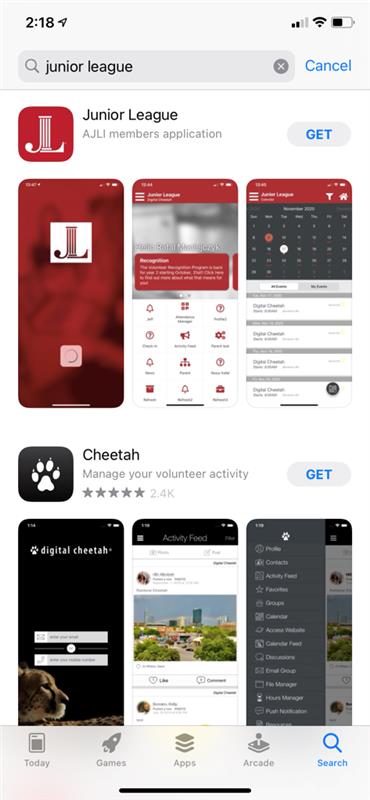
- Go to your phone's App Store or Google Play and search for 'Junior League' (do not select "Junior League Events" as that is for conferences)
Logging in to the app
- Make sure you already have an account created in Member Essentials. It will take up to 24 hours for it to fully sync to the app.
- Once you have downloaded the app and have an account, click the app from your phone
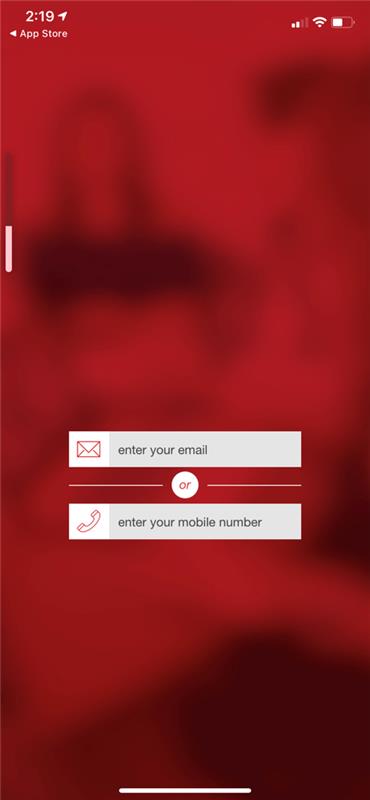
- Enter either your email or cell number associated with your Member Essentials profile
- An access code will be sent to either your email or cell number
- Enter the access code into the app to login
Defining Each Feature in the JL App
Once logged in to the app, you will see different features on the homepage. Alert bar messages will appear in the red area below the Member name. This could include announcements about events or reminders to pay dues.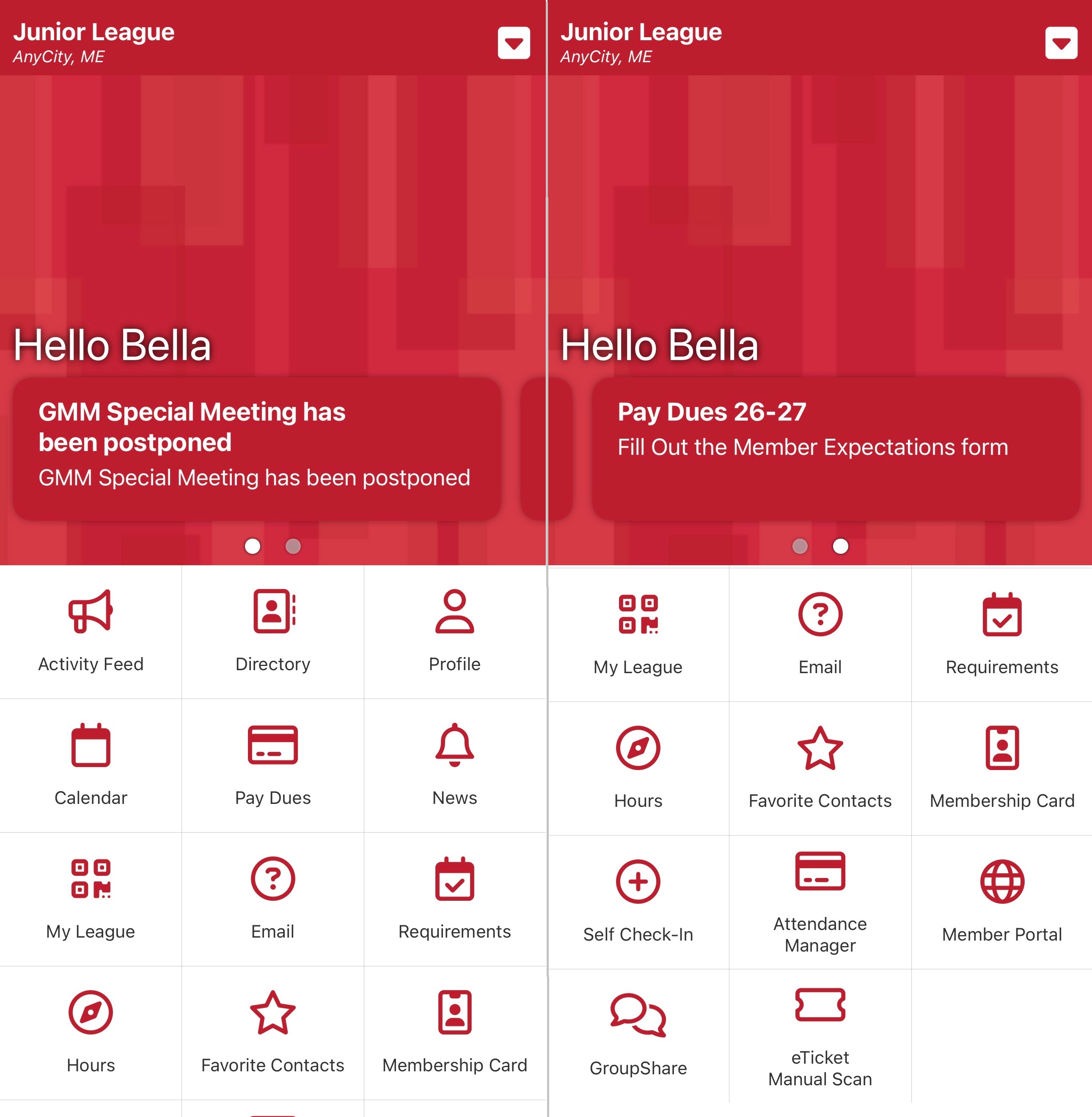 Member Essentials Basic and Plus:
- Activity Feed: This is where members can post messages or photos, visible to other members of your League.
- Directory: Use the Directory to contact other members in your League
- Profile: This shows member's basic profile information where they can update their Member Profile. This is also where members can logout.
- Calendar: Use the Calendar to view and register for your League’s scheduled meetings, events, and volunteer shifts.
- Pay Dues: Pay your membership dues. Depending on your League, the following options are available: single payment, payment plans or recurring.
- News: View the latest news and reminders from your League.
- My League: View content such as information and documents from your League.
- Send Email/Push: Email other members and access groups through this tool or send push notifications. The notification will appear as a popup in the app if members have push notifications enabled for the app on their phone.
- Favorite Contacts: Members can save frequently contacted members as favorites in the directory for easier, faster access.
- Membership Card: This will provide members a unique QR code that can be used to scan members into events
- Member Portal: Here is where members can view a mobile version of the different content pages that are available on the site. This will log them through to the actual website interface
- The Attendance Manager is not available for Basic Leagues, but they can manage attendance through the Member Portal. On the top right, find the menu
- Coordinators - go to the Calendar > Coordinator - Manage Attendees.
- Registration Administrators - Admin > Member Management > Registration Tool, below Attendees, tap on the group icon next to the event where you want to manage attendance.
- The Attendance Manager is not available for Basic Leagues, but they can manage attendance through the Member Portal. On the top right, find the menu
Member Essentials Plus leagues only:
- Requirements: View assigned member requirements.
- Hours: View and track volunteer activities.
- GroupShare: Collaborate with committees and other groups through a virtual work area which includes a Calendar, Discussions, Photos, Tasks list, News items and more.
- Self Check-In: As a member, you can check yourself into meetings and shifts based on your current location.
- Attendance Manager: Manage attendance for members and check in/out events manually or by scanning a QR code. This is available to Member Essentials Plus leagues only.
- For Leagues on Member Essentials Basic, you can use the Member Portal tile. Then, on the top right, find the menu
- Coordinators - go to the Calendar > Coordinator - Manage Attendees.
- Registration Administrators - Admin > Member Management > Registration Tool > Attendees to manage attendance.
- For Leagues on Member Essentials Basic, you can use the Member Portal tile. Then, on the top right, find the menu
eTickets Enabled:
- eTicket Manual Scan: Only available to Leagues who use eTickets, for Coordinators this will redirect to the Scan Ticket page. This does not require Registration Admin access. In case the eTicket scanners are down at the event, Scanners can copy the QR code from tickets using their iPhone or Android camera. For steps, see Manual Scan from the JL App
To watch the video tutorial: Video - Junior League Mobile App