
This article will show you how to add questions to a form in Form Builder 2.0
Required Access:
You will need Form Administrator or Administrator access level
To get to Form Builder 2.0, follow these steps:
- Go to Admin > Member Management
- Form Management (Form Builder 2.0)
- Find the form using the filters and click on edit below Actions.
Steps to be Taken:
- Here, you can add a new field.
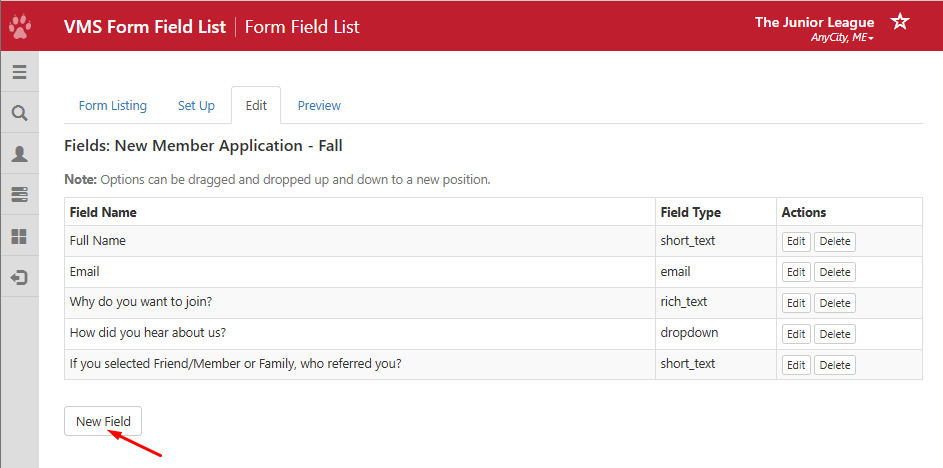
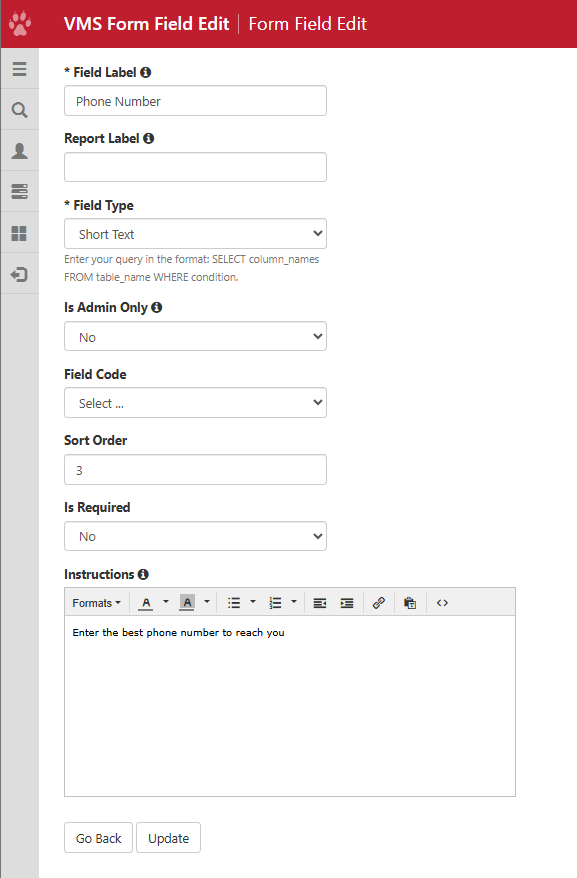
- Enter the Field Label (the title of the new field).
- For Report Label, enter the label that will be used for reports instead of the Field Label described above. (ex) Full Name
- Choose from the Field Types (description of all field types found in this article). The most commonly used one is Short Text.
- Toggle whether this is an Is Admin Only field (meaning only admins can see this field).
- Sort Order is where you enter the number in the order you'd like it to appear in the form. In our example, Name will show up first.
- Select whether or not this field Is Required.
- Provide Instructions on what information is required or what the purpose of the field is.
- Click Update in order to add that field to the form.
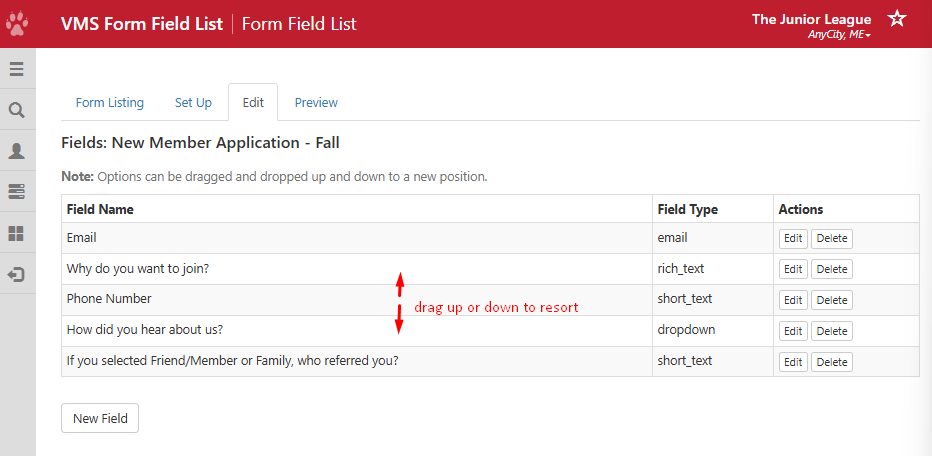
- Once you have created all fields, you can go back and edit the Sort Order of each field (The order in which they appear on the form) by selecting the field you would like to move and dragging it up or down.
You can use the Preview option to see how the different field types work, as well as seeing how the form will look to your Members.
To watch the video tutorial: Video - Form Builder